



























































Crete and Wassilyn Impress At Orientation Camp
NIAGARA, ON – The IceDogs 2024 Orientation Camp has come and gone with over 35 prospects taking part in a…
{"league":"ohl","site_api_key":"2976319eb44abe94","season":"","sponsor":false,"link":false,"days_ahead":"6","days_back":"3","team":"20","team_class":"ohl-nia","base_url":"https:\/\/chl.ca\/ohl-icedogs","language":"en","view":"scorebar","scoreboard":[{"ID":"27131","SeasonID":"76","game_number":"654","game_letter":"","game_type":"","quick_score":"0","Date":"2024-03-20","FloCoreEventId":"","FloLiveEventId":"","GameDate":"Wed, Mar 20","GameDateISO8601":"2024-03-20T19:00:00-04:00","ScheduledTime":"19:00:00","ScheduledFormattedTime":"7:00 pm","Timezone":"Canada\/Eastern","TicketUrl":"https:\/\/www.ticketmaster.ca\/brantford-bulldogs-tickets\/artist\/806495","HomeID":"1","HomeCode":"BFD","HomeCity":"Brantford","HomeNickname":"Bulldogs","HomeLongName":"Brantford Bulldogs","HomeDivision":"East Division","HomeGoals":"7","HomeAudioUrl":"https:\/\/chl.ca\/ohl-bulldogs\/audio\/","HomeVideoUrl":"","HomeWebcastUrl":"","VisitorID":"20","VisitorCode":"NIAG","VisitorCity":"Niagara","VisitorNickname":"IceDogs","VisitorLongName":"Niagara IceDogs","VisitingDivision":"Central Division","VisitorGoals":"1","VisitorAudioUrl":"https:\/\/streamdb7web.securenetsystems.net\/v5\/CKYY","VisitorVideoUrl":"","VisitorWebcastUrl":"","Period":"3","PeriodNameShort":"3","PeriodNameLong":"3rd","GameClock":"00:00","GameSummaryUrl":"27131","HomeWins":"37","HomeRegulationLosses":"20","HomeOTLosses":"9","HomeShootoutLosses":"2","VisitorWins":"17","VisitorRegulationLosses":"43","VisitorOTLosses":"6","VisitorShootoutLosses":"2","GameStatus":"4","Intermission":"0","GameStatusString":"Final","GameStatusStringLong":"Final","Ord":"2024-03-20 19:00:00.000000","venue_name":"Brantford Civic Centre","venue_location":"Brantford, ON","league_name":"Ontario Hockey League","league_code":"ohl","TimezoneShort":"EDT","HomeLogo":"https:\/\/assets.leaguestat.com\/ohl\/logos\/1.png","VisitorLogo":"https:\/\/assets.leaguestat.com\/ohl\/logos\/20.png","FloHockeyUrl":""},{"ID":"27136","SeasonID":"76","game_number":"659","game_letter":"","game_type":"","quick_score":"0","Date":"2024-03-21","FloCoreEventId":"","FloLiveEventId":"","GameDate":"Thu, Mar 21","GameDateISO8601":"2024-03-21T19:00:00-04:00","ScheduledTime":"19:00:00","ScheduledFormattedTime":"7:00 pm","Timezone":"Canada\/Eastern","TicketUrl":"https:\/\/mpv.tickets.com\/schedule\/?agency=NIDV_PL_MPV&orgid=45389#\/?view=list&includePackages=true","HomeID":"20","HomeCode":"NIAG","HomeCity":"Niagara","HomeNickname":"IceDogs","HomeLongName":"Niagara IceDogs","HomeDivision":"Central Division","HomeGoals":"1","HomeAudioUrl":"https:\/\/streamdb7web.securenetsystems.net\/v5\/CKYY","HomeVideoUrl":"","HomeWebcastUrl":"","VisitorID":"18","VisitorCode":"MISS","VisitorCity":"Mississauga","VisitorNickname":"Steelheads","VisitorLongName":"Mississauga Steelheads","VisitingDivision":"Central Division","VisitorGoals":"3","VisitorAudioUrl":"https:\/\/sauga960am.ca\/","VisitorVideoUrl":"","VisitorWebcastUrl":"","Period":"3","PeriodNameShort":"3","PeriodNameLong":"3rd","GameClock":"00:00","GameSummaryUrl":"27136","HomeWins":"17","HomeRegulationLosses":"43","HomeOTLosses":"6","HomeShootoutLosses":"2","VisitorWins":"38","VisitorRegulationLosses":"22","VisitorOTLosses":"8","VisitorShootoutLosses":"0","GameStatus":"4","Intermission":"0","GameStatusString":"Final","GameStatusStringLong":"Final","Ord":"2024-03-21 19:00:00.000000","venue_name":"Meridian Centre","venue_location":"St. Catharines, ON","league_name":"Ontario Hockey League","league_code":"ohl","TimezoneShort":"EDT","HomeLogo":"https:\/\/assets.leaguestat.com\/ohl\/logos\/20.png","VisitorLogo":"https:\/\/assets.leaguestat.com\/ohl\/logos\/18.png","FloHockeyUrl":""},{"ID":"27150","SeasonID":"76","game_number":"673","game_letter":"","game_type":"","quick_score":"0","Date":"2024-03-23","FloCoreEventId":"","FloLiveEventId":"","GameDate":"Sat, Mar 23","GameDateISO8601":"2024-03-23T19:00:00-04:00","ScheduledTime":"19:00:00","ScheduledFormattedTime":"7:00 pm","Timezone":"Canada\/Eastern","TicketUrl":"https:\/\/mpv.tickets.com\/schedule\/?agency=NIDV_PL_MPV&orgid=45389#\/?view=list&includePackages=true","HomeID":"20","HomeCode":"NIAG","HomeCity":"Niagara","HomeNickname":"IceDogs","HomeLongName":"Niagara IceDogs","HomeDivision":"Central Division","HomeGoals":"2","HomeAudioUrl":"https:\/\/streamdb7web.securenetsystems.net\/v5\/CKYY","HomeVideoUrl":"","HomeWebcastUrl":"","VisitorID":"12","VisitorCode":"SBY","VisitorCity":"Sudbury","VisitorNickname":"Wolves","VisitorLongName":"Sudbury Wolves","VisitingDivision":"Central Division","VisitorGoals":"9","VisitorAudioUrl":"https:\/\/sudburywolves.mixlr.com\/","VisitorVideoUrl":"","VisitorWebcastUrl":"","Period":"3","PeriodNameShort":"3","PeriodNameLong":"3rd","GameClock":"00:00","GameSummaryUrl":"27150","HomeWins":"17","HomeRegulationLosses":"43","HomeOTLosses":"6","HomeShootoutLosses":"2","VisitorWins":"38","VisitorRegulationLosses":"23","VisitorOTLosses":"4","VisitorShootoutLosses":"3","GameStatus":"4","Intermission":"0","GameStatusString":"Final","GameStatusStringLong":"Final","Ord":"2024-03-23 19:00:00.000000","venue_name":"Meridian Centre","venue_location":"St. Catharines, ON","league_name":"Ontario Hockey League","league_code":"ohl","TimezoneShort":"EDT","HomeLogo":"https:\/\/assets.leaguestat.com\/ohl\/logos\/20.png","VisitorLogo":"https:\/\/assets.leaguestat.com\/ohl\/logos\/50x50\/12.png","FloHockeyUrl":""}]}


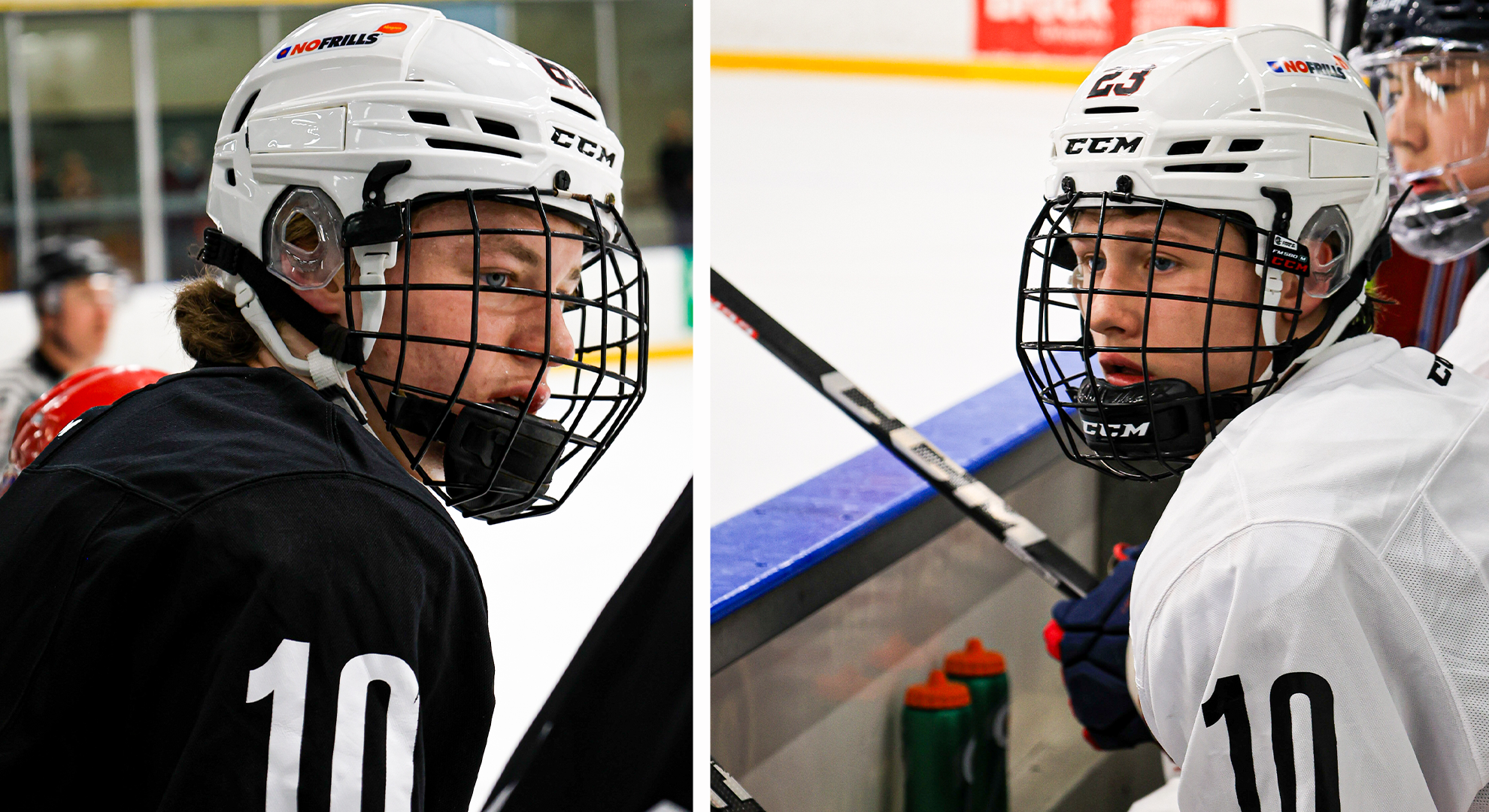
NIAGARA, ON – The IceDogs 2024 Orientation Camp has come and gone with over 35 prospects taking part in a…

NIAGARA, ON – The Niagara IceDogs have announced the rosters for their annual Orientation Camp which is set to take…

NIAGARA, ON – The Niagara IceDogs are pleased to announce the commitment of Braidy Wassilyn to an OHL Scholarship and Development…

NIAGARA, ON – The 2023/24 season was filled with firsts, and this weeks Milestone Moment highlights yet another; IceDogs captain…

NIAGARA, ON – The Niagara IceDogs are proud to officially announce a donation of $8742.40 to YMCA Niagara following the…
NIAGARA, ON – The IceDogs 2024 Orientation Camp has come and gone with over 35 prospects taking part in a…
NIAGARA, ON – The Niagara IceDogs have announced the rosters for their annual Orientation Camp which is set to take…
NIAGARA, ON – The Niagara IceDogs are pleased to announce the commitment of Braidy Wassilyn to an OHL Scholarship and Development…
NIAGARA, ON – The 2023/24 season was filled with firsts, and this weeks Milestone Moment highlights yet another; IceDogs captain…
NIAGARA, ON – The Niagara IceDogs are proud to officially announce a donation of $8742.40 to YMCA Niagara following the…

NIAGARA, ON – The Niagara IceDogs are holding their annual Orientation Camp on Saturday, April 27th at the Seymour Hannah…

NIAGARA, ON – This weeks edition of our Season Highlight series focuses on an electric early season game versus the Windsor…

NIAGARA , ON – The Niagara IceDogs made three selections in the 2024 U18 Priority Selection, picking one forward, one…

The OHL will hold its annual Under-18 Priority Selection on Wednesday, April 17th at 7:00pm, streaming live for free on…

NIAGARA, ON – NHL Central Scouting has released it’s final rankings as the 2024 NHL Draft approaches. Kevin He was…